 zenvodo
A calmer day starts with one small step.
Keep the useful work. Leave room for a little joy. Read this guide before adding your first mailbox connection.
Free is a useful place to stay
You do not need a subscription—or a connected inbox—to make zenvodo part of your day. Your free Personal space is yours for manual tasks and saved work.
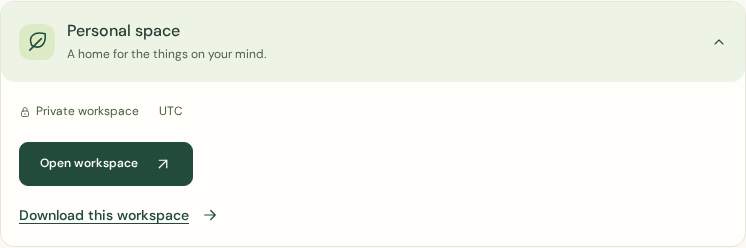
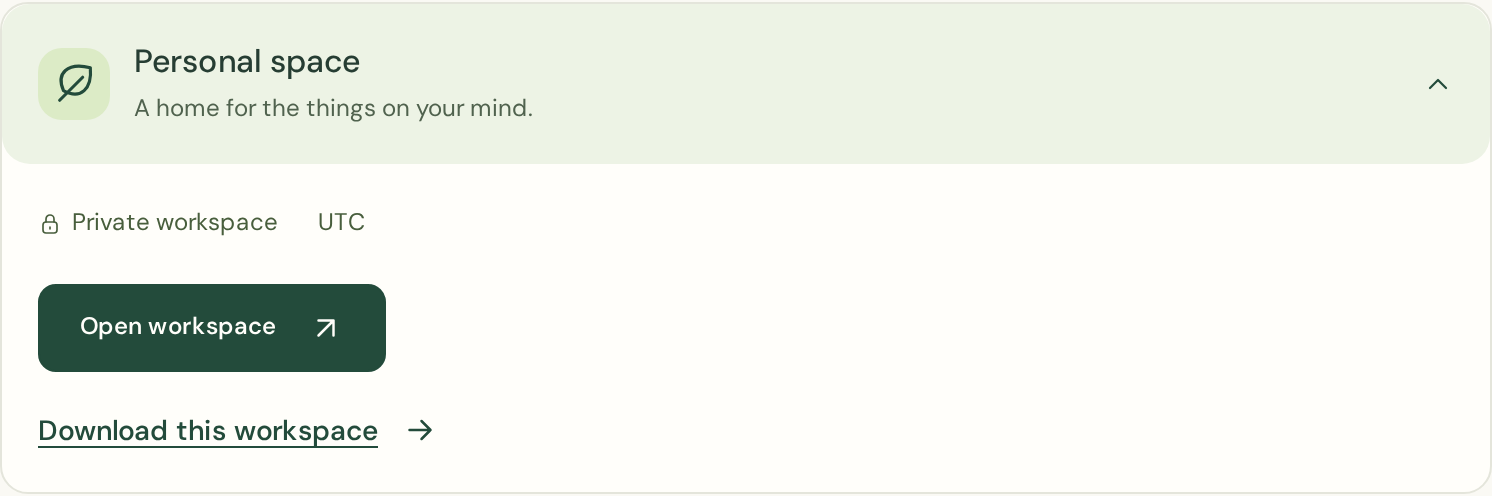
- Create an account and open Account → Your spaces → Personal space → Open workspace.
- Select New task. Add a next step, a due date, priority and category if useful.
- Use Today to focus, then start, complete or snooze a task. There is no Inbox Zero score to chase.
- Arrange widgets by dragging or using their keyboard move controls. Save custom task views to find your work again.
- Visit your private daily briefing, review follow-ups, or download a workspace from Account.
- Take an optional mindful moment between tasks. Set your timezone and workdays in the dashboard’s Mindful moments widget, or choose a quiet pause whenever it suits you.
Verify your sign-in address using the verification email when ready. Verification and mailbox authorization are separate steps. The public demo is another way to explore with fictional tasks.
Choose the pace that fits
Personal adds one iCloud or IMAP connection and 3,000 analyses per month. Pro includes iCloud and IMAP with two connections total and 8,000 analyses shared between them; Microsoft 365 / Outlook.com is included with Pro. Both retain your free Personal space. Compare prices and subscribe from Billing.
For an IMAP mailbox, read its connection and security guide. iCloud counts once toward your total email connection limit and is separate from generic IMAP. New Gmail / Workspace connections are temporarily unavailable; existing connections retain their current tools.
Subscriptions renew automatically until canceled. Stripe handles checkout, payment details and invoice PDFs. Paid access starts after payment confirmation. You still separately authorize your mailbox and consent to email analysis.
To change plans at renewal, open Account → Your plan, usage & invoices → Your next renewal. Choose the next plan and confirm Schedule this change. Your current plan continues until the displayed date, including the end of an annual term, and there is no charge today. You can replace or withdraw a pending change on that page. Cancellation at renewal replaces any pending plan change and keeps your saved work available on Free. An immediate upgrade through Stripe follows the prorated amount shown there. Current-month analysis usage carries over through every plan change.
Know what uses your allowance
- One message sent for an analysis attempt uses one unit, whether it finds zero, one or several tasks. Each incoming or sent reply is a separate message. Retried analysis attempts can use additional units.
- The initial import and later messages use the same monthly allowance. Choosing the last day, last seven, or last thirty days sets the first import window; ongoing checks then pick up new messages without repeatedly analyzing completed messages.
- Completed duplicates, unsupported messages, recognized zenvodo service emails and messages excluded by a Skip analysis email rule before analysis use no units.
- A dashboard filter only changes which saved tasks you see. It does not prevent email analysis. Setting a task category or requiring review also does not skip analysis.
The allowance resets at midnight UTC on the first day of each calendar month, including on annual subscriptions. Unused units do not roll over. Pro’s allowance is shared, not multiplied by its two connections. Changes to a subscription do not erase current-month usage.
Before adding your first connection
- Review a typical week of incoming and sent mail. Identify repeat advertisements, newsletters and routine alerts that never create useful work for you.
- Set provider filters where helpful. Category tabs are a starting point for spotting noise, not a guarantee that zenvodo will exclude it.
- Verify your zenvodo account email and subscribe to the appropriate plan. Connect an allowed provider from Account. Connecting alone does not start analysis.
- Expand the connected space and open Email rules. Add and test narrow Skip analysis rules before enabling syncing.
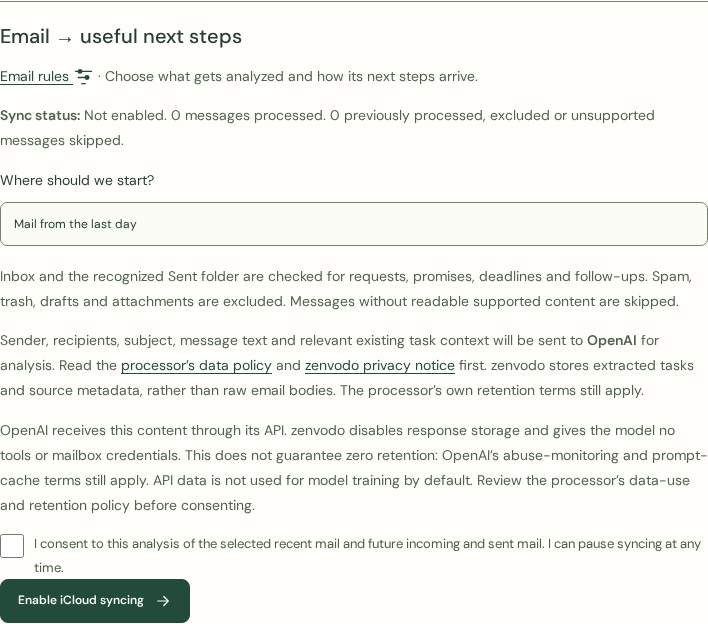
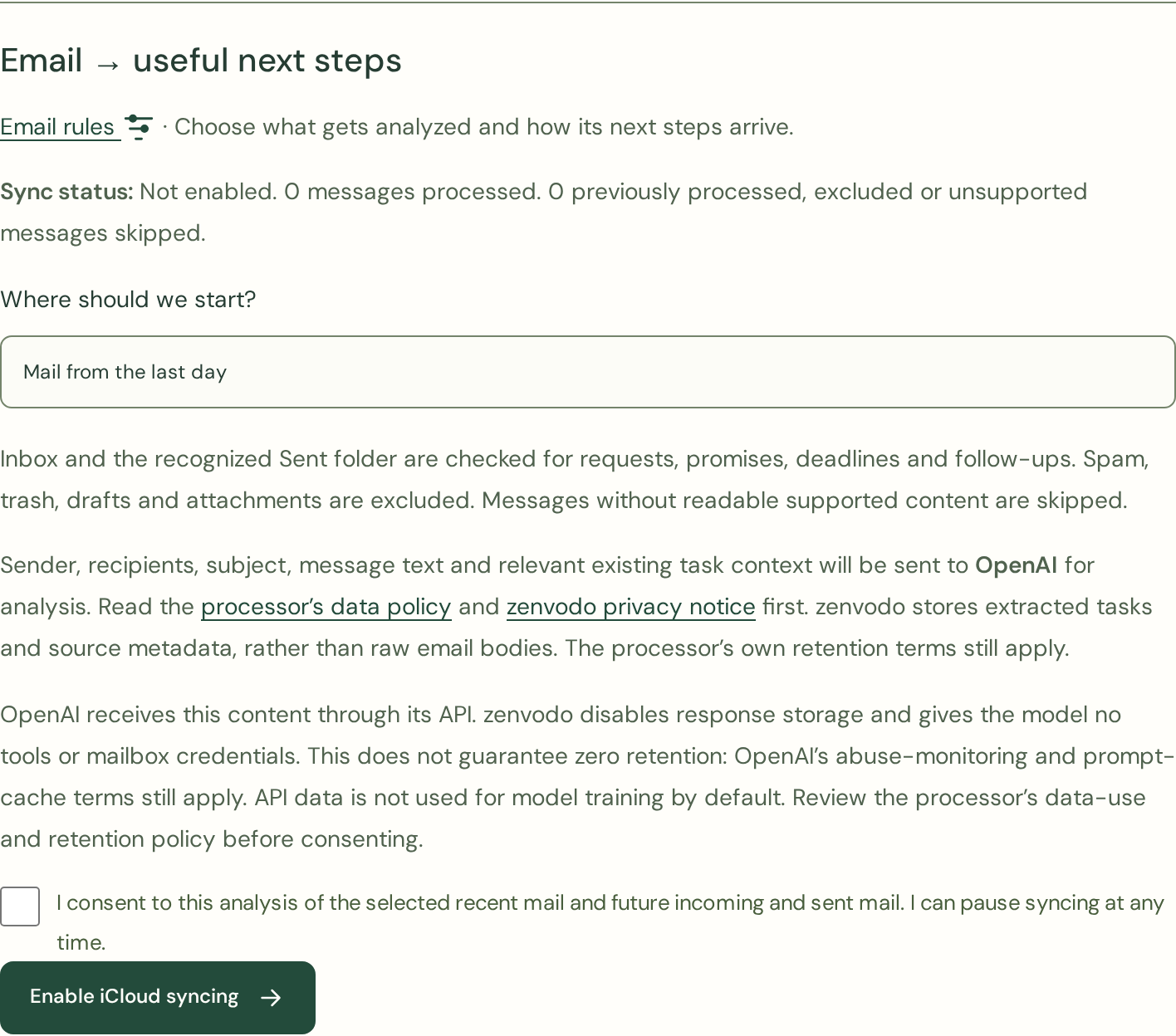
- Start with Mail from the last day if you want a small initial import, or choose seven days with room in your allowance. The initial window is retained after activation; resuming does not restart it.
- Read the processor disclosure, then enable syncing only when comfortable. You can pause while reviewing or changing rules.
Do not automatically exclude every receipt, notification or newsletter: some contain a bill to pay, a deadline, an account-security issue or another real obligation. Prefer exact unwanted sender addresses over broad domains or vague subject words.
Gmail / Google Workspace: filters and category tabs
Gmail can display Primary, Promotions, Social and other inbox categories. Review those tabs to identify repeat senders. Moving mail between tabs changes organization; it does not by itself save analysis allowance. See Google’s category guide.
- In Gmail on a computer, open the search options beside the search box. Enter a specific unwanted sender or other narrow criteria.
- Select Search and inspect matches, including useful mail you would want to keep.
- Choose Create filter, select an organizing action such as applying a label or Skip the Inbox, then Create filter. Manage it later under Settings → See all settings → Filters and Blocked Addresses.
For zenvodo, add a matching Skip analysis email rule too. Its Gmail reader includes archived mail, so applying a label, marking mail read or skipping the Inbox does not exclude it. zenvodo’s email rules currently match sender address, sender domain, subject and direction; Gmail category labels are not rule conditions.
Use Google’s filter instructions for the current controls. zenvodo’s read-only connection cannot create or change your Gmail filters.
iCloud: categories and server-side rules
Apple Mail can group mail into Primary, Transactions, Updates and Promotions where supported. These are organization aids; the zenvodo IMAP reader does not use Apple category tabs as exclusions. Time-sensitive mail may appear in Primary as well. See Apple’s category guide.
- Sign in at iCloud.com/mail and create a folder for optional reading if needed.
- Open the Settings button above the mailbox list → Settings → Rules → Add.
- Name the rule, match a specific unwanted sender, and choose an action to move matching mail to that folder. Select Add and check the result.
zenvodo currently reads Inbox and the designated Sent folder, so mail moved to another folder before it is fetched is outside that scan. Rules can take time to apply; use a matching zenvodo Skip analysis rule as well for a dependable pre-analysis exclusion. A rule only in a desktop mail app may depend on that app running; iCloud.com rules run at the provider.
Follow Apple’s server-side rule instructions. Connect iCloud using an Apple app-specific password, never your main Apple Account password. See our iCloud connection guide.
Set a Skip analysis rule in zenvodo
- From Account, expand the connected mailbox under Your spaces and select Email rules.
- Enter a descriptive Rule name, such as “Optional weekly newsletter”, and leave Enable this rule checked.
- Under When email matches, choose Sender address → equal (is) → newsletter@example.test, replacing the example with the actual unwanted sender. For more conditions, AND requires every condition; OR requires any one. Add Direction → equal (is) → incoming if useful.
- Under Then…, select Skip analysis. Leave Run order at its default unless arranging several rules.
- Use the sample preview with a fictional sender, subject and direction to check a match; also try a nonmatching sample. Preview does not read your mailbox, send anything to AI or save the rule.
- Select Save rule. Check it appears enabled, then return to the space’s sync controls and enable or resume syncing.
Without JavaScript, the basic form can create a single-condition rule. Rules belong to one mailbox; create the relevant exclusions separately for each connection. Domains match exactly and do not include subdomains. Any matching Skip analysis rule excludes the message, so another priority rule cannot override it.
Rules affect future processing, including remaining messages in an unfinished import. They do not refund earlier analyses, remove saved tasks or replay previously excluded mail. A request already sent cannot be recalled. Read the email rules guide for editing and rule limits.
Give a next step a little space
From Calendar settings, optionally authorize Microsoft 365 / Outlook.com Calendar, iCloud Calendar or another compatible CalDAV service. Calendar authorization is separate from mail. zenvodo creates a dedicated calendar at that provider. It does not reuse your Mail password or use another email connection slot.
Open a saved task and choose Schedule in your calendar. Review a reminder, appointment or focus block and confirm before adding it. Detected appointments are proposals; check the original email, date, time and duration yourself. Calendar scheduling uses no analysis credits and also works with manual tasks in your free Personal space.
Task changes do not automatically change events, and changes in your calendar app do not update tasks. Read the calendar guide for updates, removals and recovery.
Measure a week, then adjust
- Record Used, Remaining and Reset date from Account → Your plan, usage & invoices before the first sync.
- After the initial import, record usage again. Keep this one-time import separate from your ongoing daily average.
- Over the next week, compare daily usage with the useful work found. A simple estimate is daily analyses × days remaining in the UTC month; include both incoming and sent mail.
- If routine senders are consuming allowance, pause syncing, add narrow Skip analysis rules, preview them and resume. Review your providers’ folders as well so useful mail is not overlooked.
- Check Billing again. The sync panel’s processed and skipped counters describe sync activity, not a separate monthly allowance. Only the monthly usage display shows your remaining allowance.
You are choosing what deserves attention, not trying to process every email. Keep normal access to your mailbox for mail outside zenvodo’s scan and check critical messages yourself.
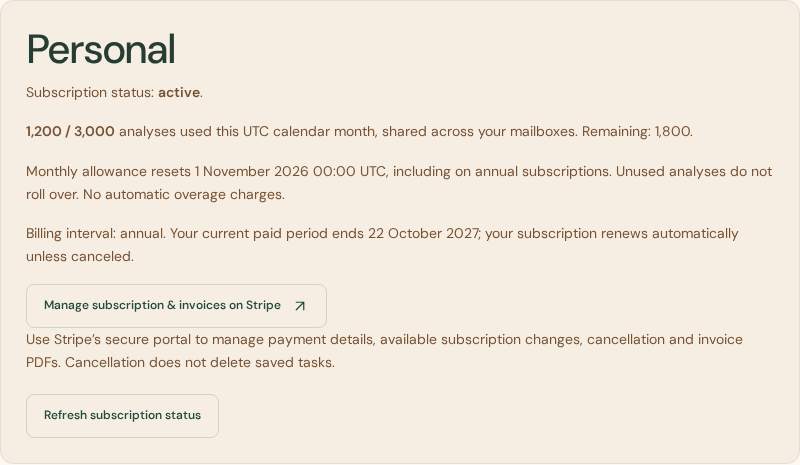
At the monthly cap, keep getting things done
Your workspace stays open. Keep adding manual tasks, editing details, changing priorities, starting or completing work, snoozing, arranging widgets, using saved views, reading your private briefing and downloading saved data. Existing tasks are not deleted because your allowance is used.
Only new automatic email analysis pauses. No automatic overage charge is added. While analysis is paused, email-based follow-up and completion suggestions cannot reflect new messages. You can review your rules and resume eligible analysis after the monthly reset if the subscription and consent remain active. Catch-up work counts toward the next month’s allowance too.
If you cancel or move back to Free, saved tasks and manual tools remain. Mailbox analysis requires an active paid plan. Disconnecting a mailbox is different: it deletes that connection’s local workspace data, so download anything you need first.