 zenvodo
A calm home for iCloud Mail
Connect with a dedicated Apple app-specific password, then choose whether to analyze mail.
Prepare your Apple Account
Enable two-factor authentication, then visit account.apple.com → Sign-In and Security → App-Specific Passwords. Generate a password for zenvodo. Never enter your main Apple Account password in zenvodo.
Connect your mailbox
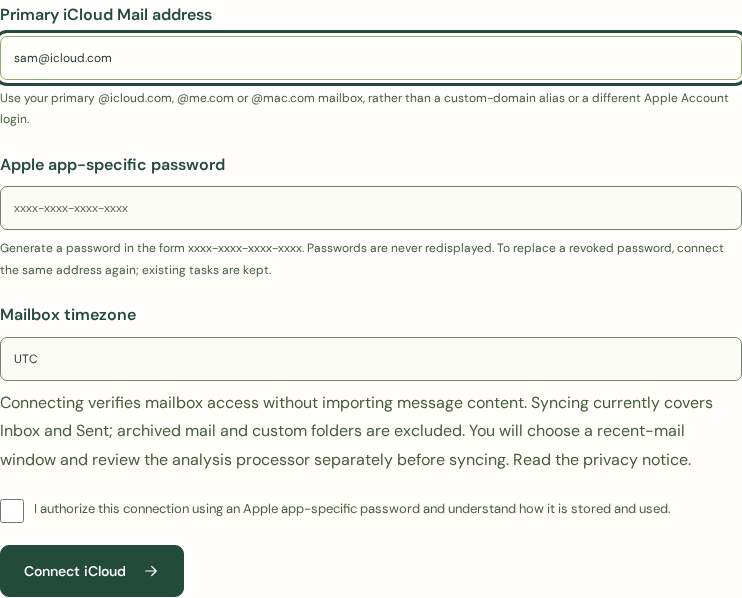
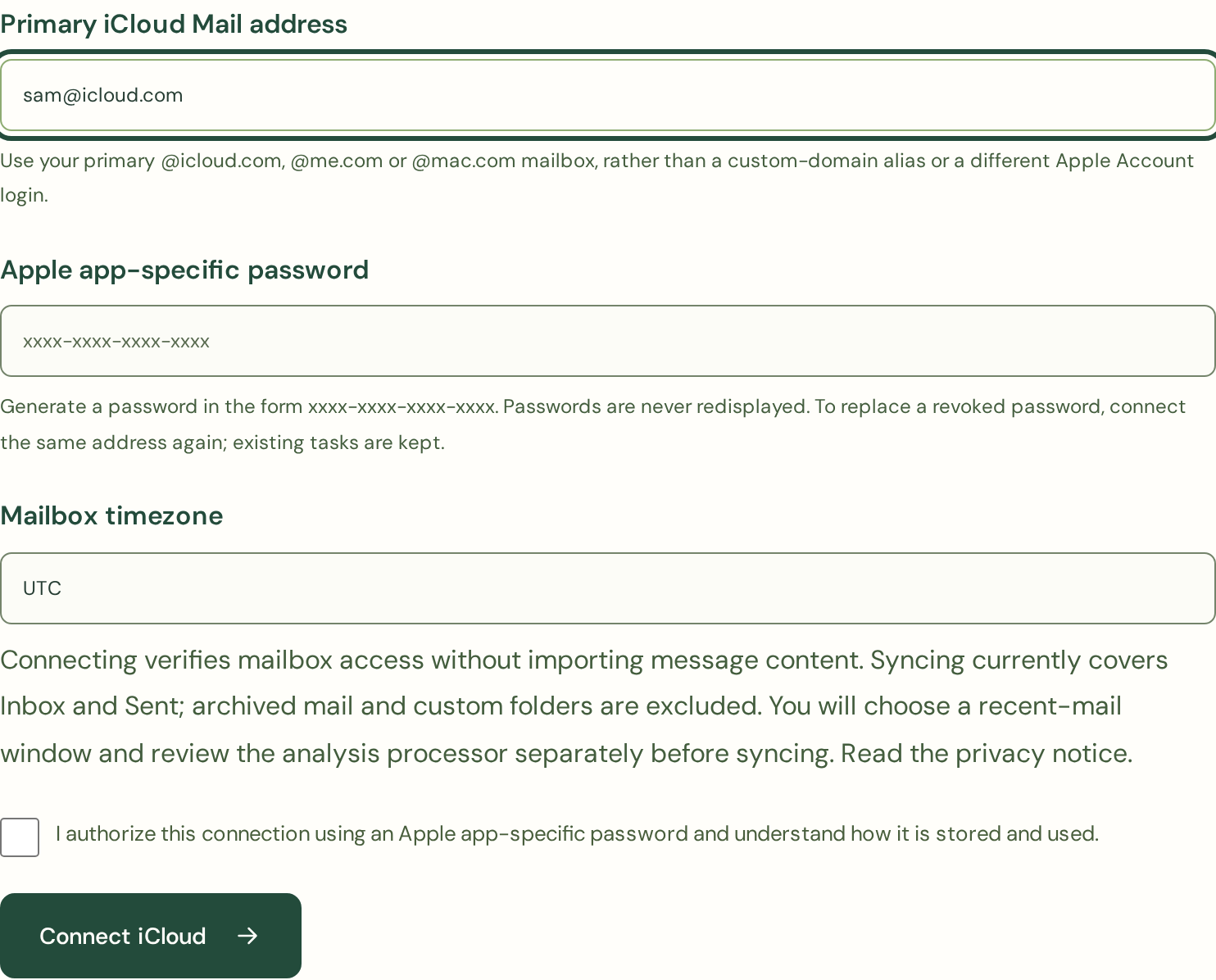
First verify your zenvodo sign-in email from Account. Then expand Apple iCloud and choose Continue to iCloud. Enter your primary @icloud.com, @me.com or @mac.com address, the generated password and timezone. Custom-domain aliases and a different Apple Account login are not supported onboarding addresses. Confirm connection consent. Connection verification reads mailbox metadata, without importing message content.
Understand the permissions
Apple app-specific passwords do not have a read-only permission scope. zenvodo restricts its reader to read-only IMAP commands over TLS; it does not send, archive, delete, move or mark messages read. The password is encrypted on the server. You can revoke it at Apple at any time.
Choose analysis separately
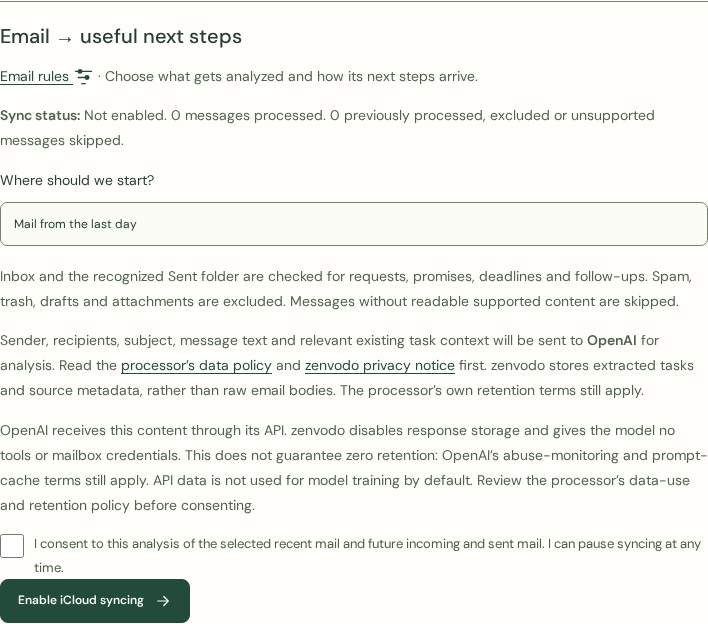
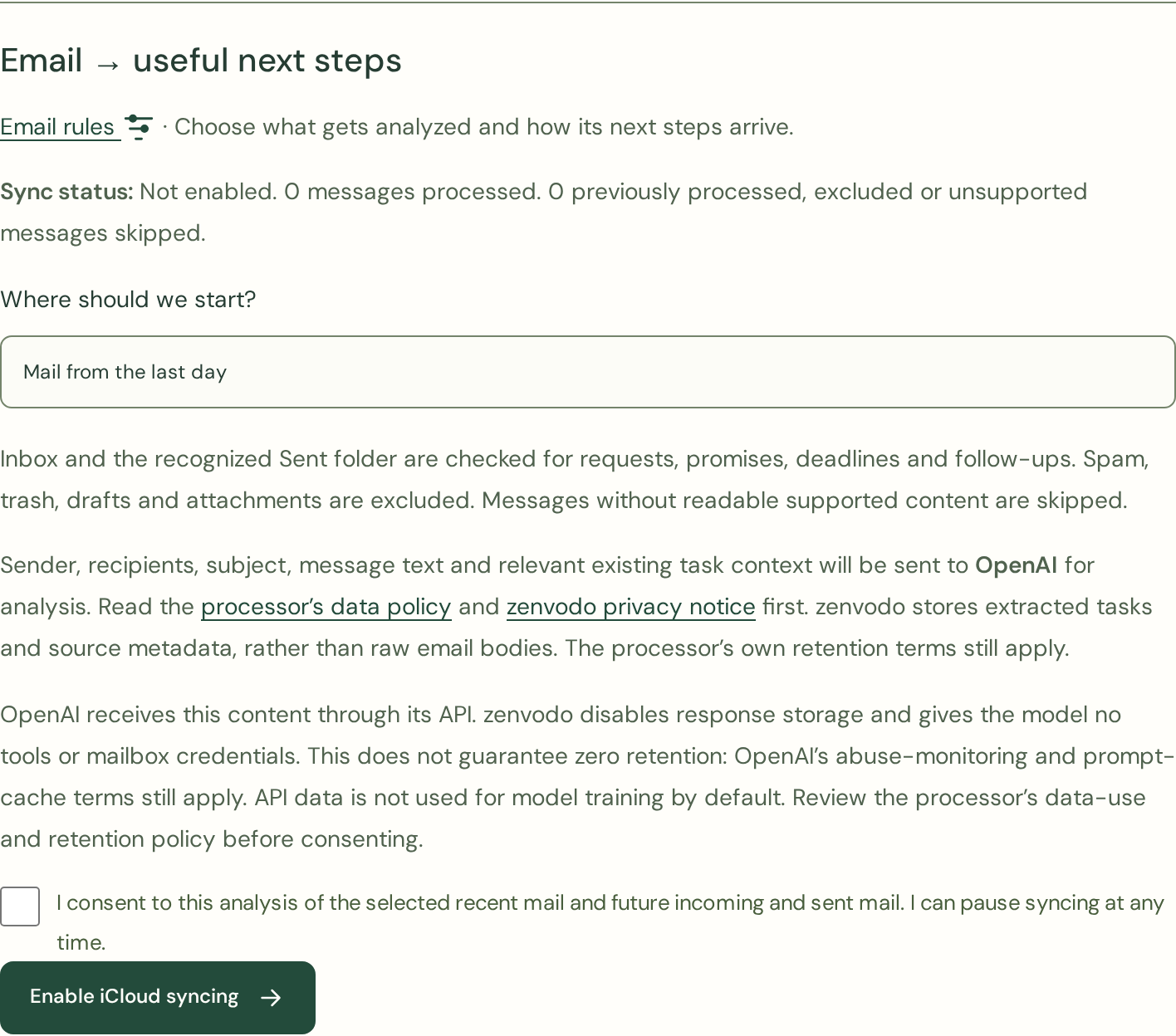
In Account, select a 1, 7 or 30 day window, review the disclosed analysis processor and its policy, and explicitly enable iCloud syncing. The existing background worker checks Inbox and Sent for tasks, promises, deadlines and follow-ups. Archived mail, custom folders, spam, trash, drafts and attachment contents are excluded. Large or unsupported messages are skipped.
Keep the source close
Task source details show the sender and subject. Open iCloud Mail opens the web mailbox; search for the displayed subject there. Exact message links are not available. Rules, custom task views, follow-up insights and briefings work with iCloud tasks too.
Replace or revoke a password
If Apple revokes the password, syncing shows a reconnect message. Generate a replacement and connect the same mailbox again while signed in to the same zenvodo account; existing tasks and sync settings are kept. Changing your main Apple Account password can revoke app-specific passwords. Pause syncing whenever you need. Disconnect removes local workspace data; also revoke the app-specific password at Apple.