 zenvodo
Done, later, or not for you
Keep the work moving without managing your inbox.
Start a little work
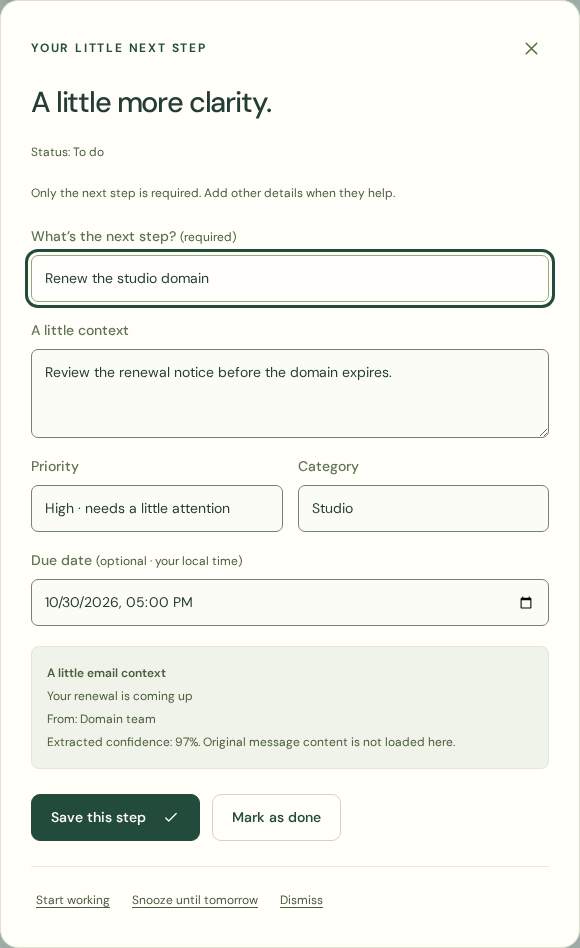
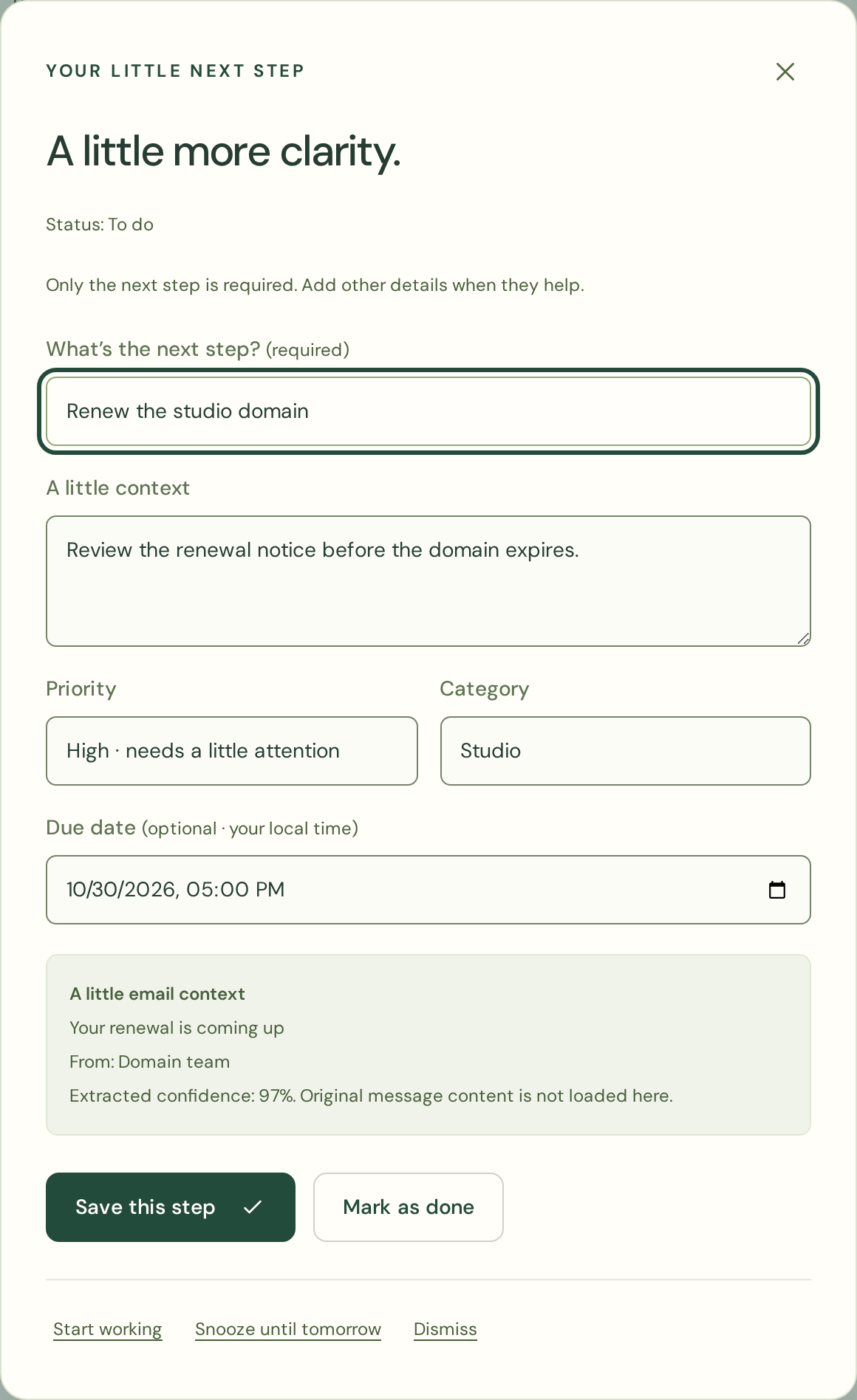
Open a to-do task and choose Start working. It gains an In progress label and appears in that view, in My day even without a deadline, and in your daily briefing. Move back to do when you want to stop working on it. Review candidates must be approved before starting. These actions organize zenvodo tasks; they do not modify your mail.
Possibly finished
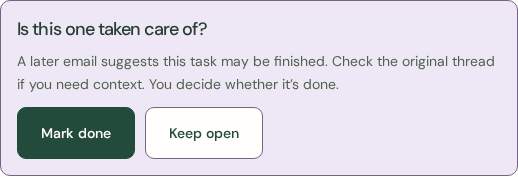
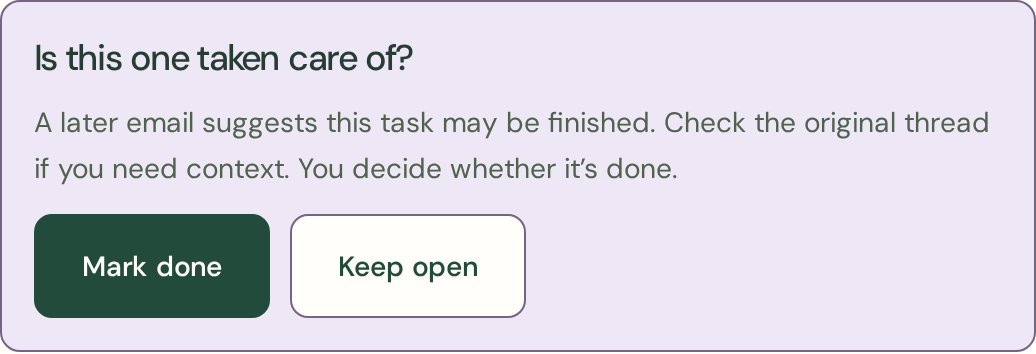
A later email may suggest that an existing task is finished. Open Possibly finished in the sidebar, review the task and its source email, then choose Mark done or Keep open. Keeping it open removes only that completion suggestion and preserves the task’s status, edits and snooze. A strictly newer message can suggest completion again; older history cannot. Nothing is completed automatically. Suggestions also appear in your private briefing.
Complete with a click
Use the circle next to a task when it is finished. Open Done in the sidebar to revisit completed work and reopen a task. Completing a task only changes zenvodo; it does not archive or delete the source email.
Make room for later
Open a task and choose Snooze until tomorrow to hide it until 9am the next day in that workspace’s timezone. For later holds snoozed work. Use Resume when you are ready to bring it back sooner. A task snoozed while In progress returns to In progress when resumed or when the snooze expires.
Keep the context
Select a task to see its description, category, priority and source details. You can correct the extracted title or due date. zenvodo preserves your changes when later messages are analyzed. Gmail-sourced tasks can open the original conversation in Gmail; you need to be signed in to the matching Google account. iCloud tasks open iCloud Mail, where you can find the message using the displayed subject; exact iCloud thread links are unavailable.
Review uncertain suggestions
The Review view holds tasks that need your judgment. Open a suggestion to approve or dismiss it. Analysis is assistance; you stay in control of what becomes your work.