 zenvodo
Make time for a task in your calendar
Optional, reviewed scheduling with Microsoft, iCloud or a compatible CalDAV calendar.
Connect Microsoft Calendar
Verify your zenvodo sign-in email. In Calendar settings, choose Microsoft 365 / Outlook.com Calendar and review the separate authorization before continuing to Microsoft sign-in. Work, school, Outlook.com, Hotmail and Live accounts are supported. Microsoft grants calendar read/write permission; zenvodo restricts its use to a new dedicated calendar and reviewed changes to its own events. Mail permission is not requested. Calendar is available on every plan and does not require a Microsoft mail connection. Your organization may require administrator approval.
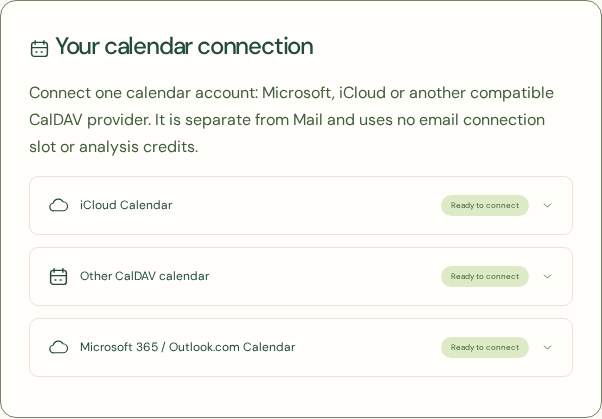
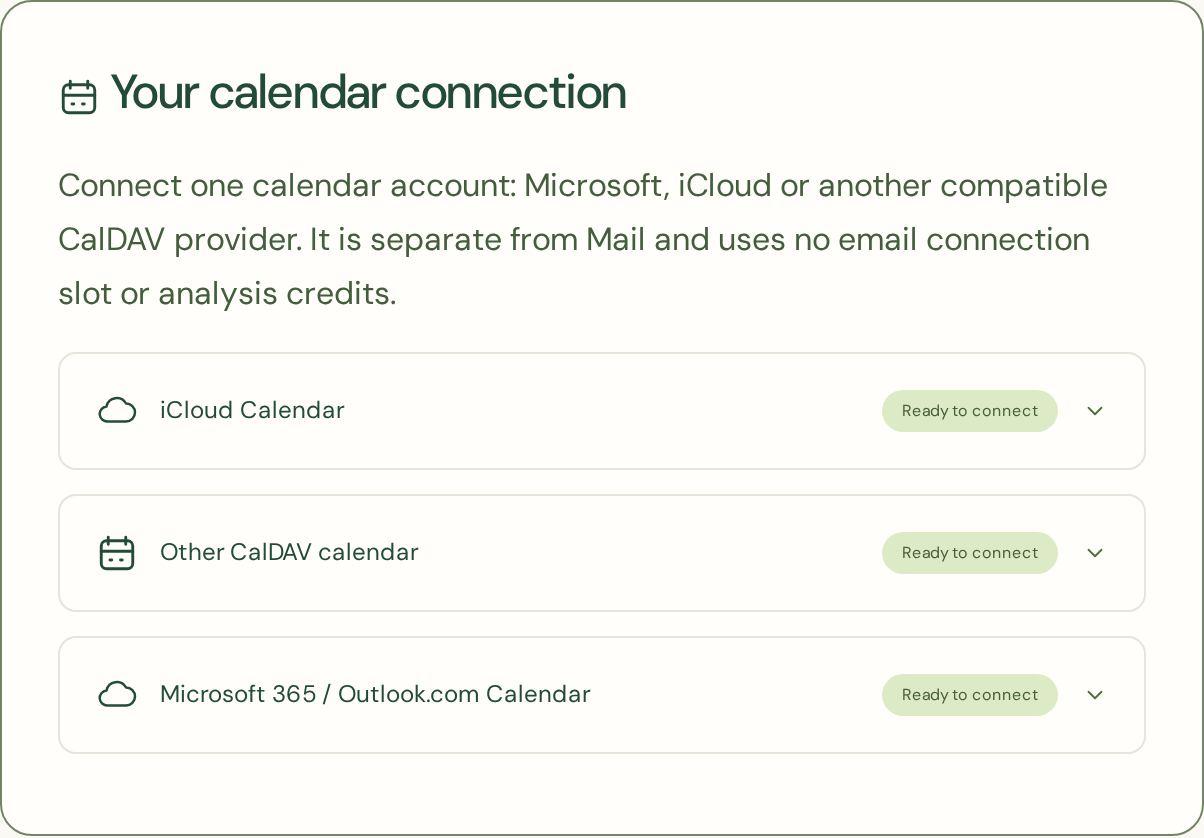
Connect iCloud Calendar separately
From Account, choose Connect or manage calendars. Verify your zenvodo email first. Generate a separate app-specific password at account.apple.com, then enter your Apple Account sign-in email and that password. Never use your main Apple password. Calendar authorization is independent of Mail, does not use an email connection slot or analysis credits, and is available for manual tasks in your free Personal space too.
Connect another CalDAV provider
Choose Other CalDAV calendar in Calendar settings. Get the HTTPS CalDAV discovery or account URL and exact username from your provider, preferably with an app-specific password. Enter those credentials, confirm your current zenvodo password and explicitly authorize setup. Your zenvodo password is never sent to the provider. Public HTTPS on port 443 with a trusted certificate, same-server discovery, MKCALENDAR creation, VEVENT events and strong ETags are required. A supported public Nextcloud, Fastmail, Radicale or other CalDAV service may work when configured with these capabilities; compatibility is not guaranteed for every host. Private/internal servers, custom ports, self-signed certificates and OAuth-only accounts are not supported. Use the account endpoint rather than a shared-calendar/webcal URL. zenvodo does not automatically discover servers from an email address.
One connection, independently authorized
Connect one calendar account: Microsoft, iCloud or another CalDAV provider. Calendar is available on Free, Personal and Pro without using an email slot or analysis credits. zenvodo creates its own calendar and manages only events it creates. To change provider, server or username, first remove any events you want deleted, then disconnect locally and authorize the new account. Reauthorization on the same account preserves links. If setup is interrupted, retry on the same server and login; the same calendar identifier is reused.
Give a saved task some time
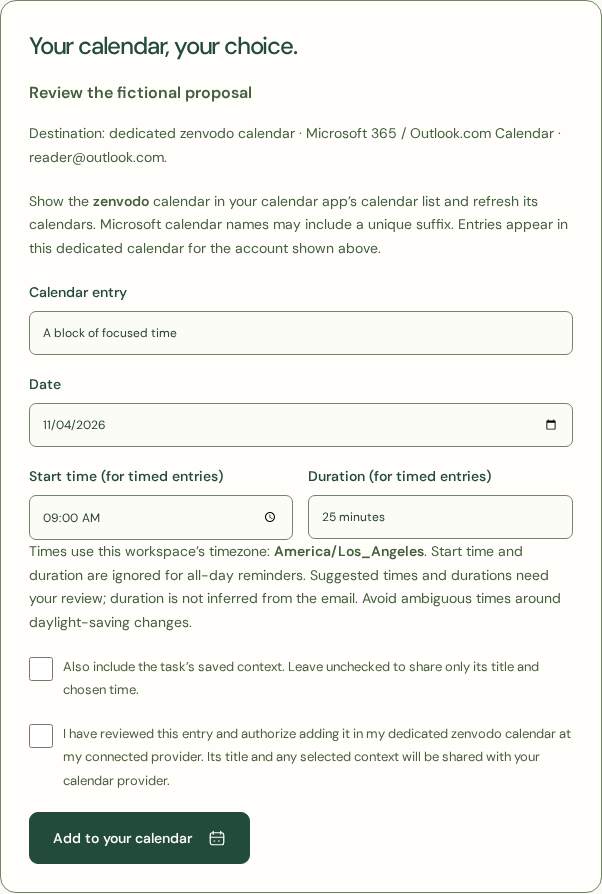
Open a saved task and choose Schedule in your calendar. Save task edits first. Review its title, choose an all-day task reminder, a focus block or an appointment, and confirm its date, time and duration in the workspace timezone. Focus blocks default to 25 minutes. One linked event is supported per task. The entry goes directly into a new zenvodo calendar at your connected provider.
Review proposed appointments
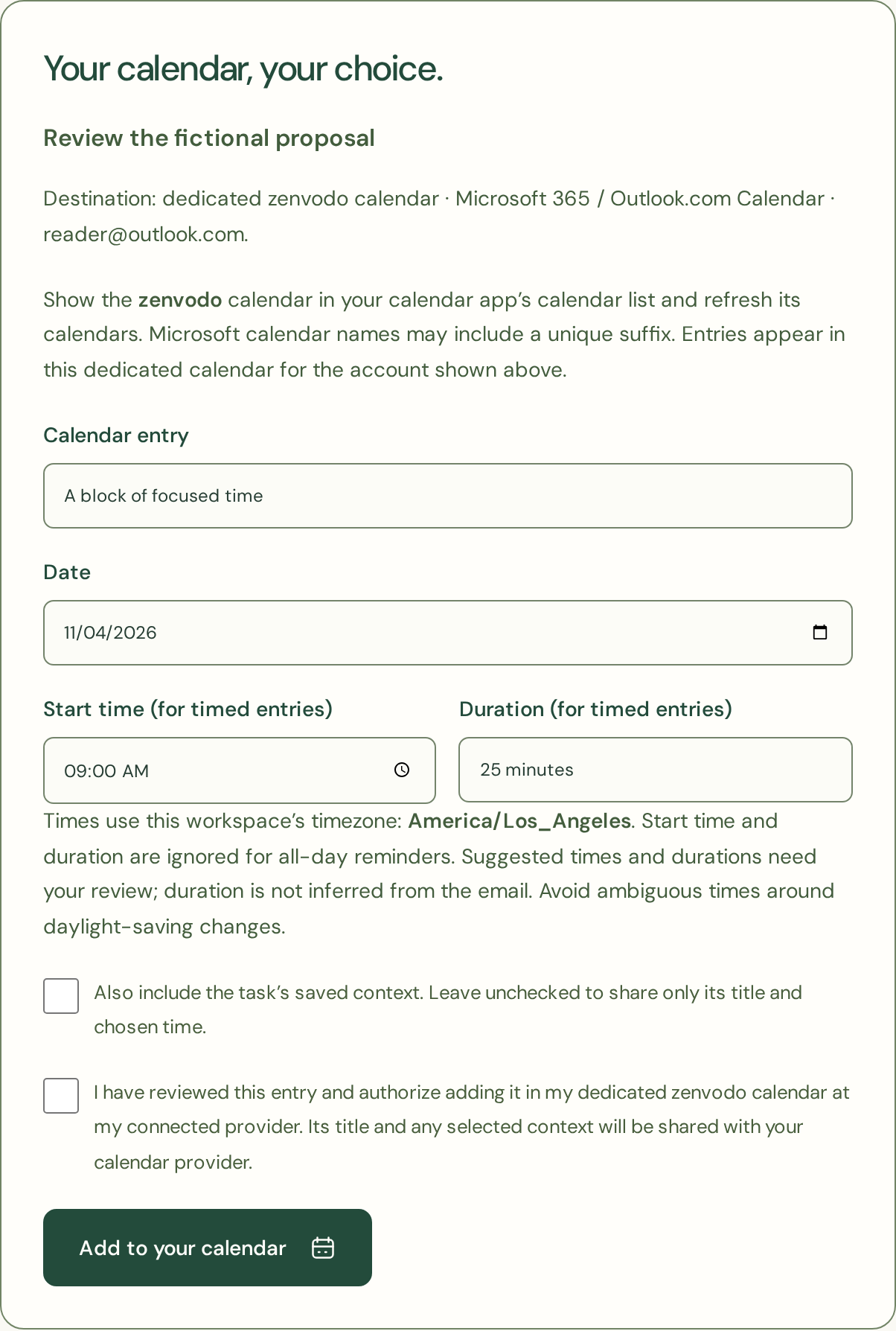
An email classified as an event stays a proposal for your review. Choose Review proposed calendar event. A detected date can prefill the form, but check the original email, timezone and duration yourself. Duration is a suggested choice, not extracted from the email. No booking is confirmed and no event is written until you explicitly approve the calendar form.
Choose what to share
Only the saved title and reviewed time are sent by default. Saved task context is optional. No original email body, sender, recipients, attachments, invitations, attendees or alarms are sent. The provider receives its own login credential over verified HTTPS; it is never included in an event or sent to an AI service. Review sharing settings on the provider calendar; a private event flag cannot prevent access by someone you share that calendar with. Apple app-specific passwords have broader access; zenvodo enforces its own restriction to its dedicated calendar and events.
Update, remove or recover
Reopen the task calendar page to explicitly update or remove its linked event. Task edits and completion do not change the remote calendar automatically, and your calendar app edits do not update tasks. zenvodo refuses to overwrite an externally changed event. Keep managing it in your calendar app or confirm removing only its local link. After an interrupted request, Check pending operation reuses the exact reviewed entry and identifier to avoid duplicates; it can retry the original action.
Disconnect without losing your calendar
Disconnect Calendar removes local credentials and event links, leaving provider events and tasks intact. Mailbox disconnection or account deletion also leaves calendar events at the provider. Revoke the Calendar credential or Microsoft app permission separately with your calendar provider. Reconnecting after disconnection creates a new dedicated calendar; existing events are not adopted. Microsoft 365 and personal Outlook.com Calendar use separate Microsoft authorization. Two-way synchronization is not available.