 zenvodo
Your own mail host, with a little more care
Connect a supported IMAP mailbox using verified TLS and encrypted credentials.
Find the actual mail server
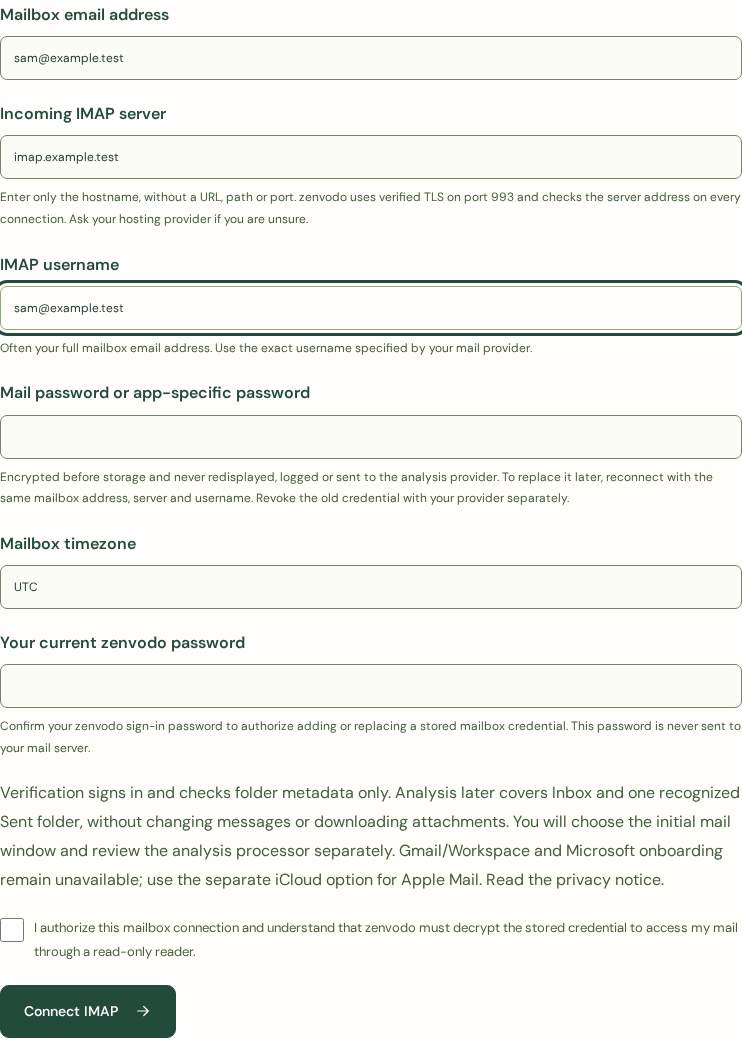
Ask your mail host for its public incoming IMAP hostname and exact username. zenvodo requires TLS on port 993 with a valid certificate. Private/internal servers, IP literals, self-signed certificates, custom ports and STARTTLS on port 143 are unsupported. Connect Microsoft and iCloud through their dedicated options. New Gmail/Workspace connections remain unavailable.
Prefer a password just for this connection
Create an app-specific password or dedicated credential if your provider offers one. Enable provider two-factor authentication where available. A mailbox password may allow writes or other access even though zenvodo uses read-only commands. Never enter your main Apple, Google or Microsoft password here. If you are uncomfortable sharing a provider password, leave the connection off and use manual tasks.
Connect after reviewing the details
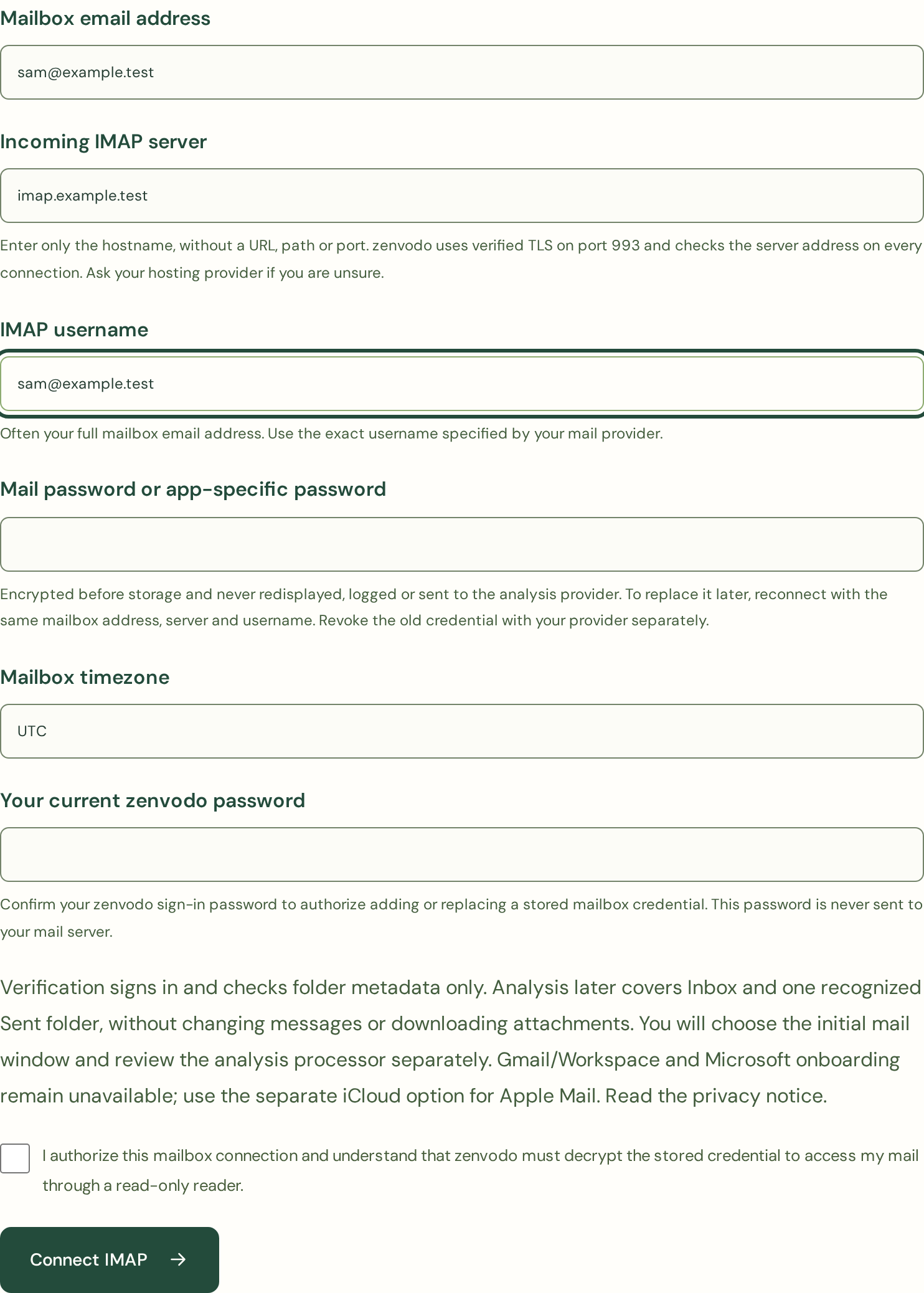
Verify your zenvodo email and choose an active Personal or Pro subscription. From Account expand Other email · IMAP, then Continue to IMAP. Enter your mailbox address, IMAP server, username, provider password and timezone. Confirm your current zenvodo password and connection consent. Both passwords are cleared after errors and never redisplayed. Verification checks folder metadata without importing message content. Connection attempts are limited for your security.
Choose what deserves analysis
Before enabling syncing, add narrow Skip analysis email rules for newsletters and routine notifications. Choose a 1, 7 or 30 day initial window and separately consent to the disclosed analysis processor. The reader checks Inbox and one recognized Sent folder. Other folders, drafts, trash, junk and attachments are excluded. Your mail host may use a Sent folder zenvodo does not recognize; ask support if outgoing promises are missing. IMAP tasks work with normal filters, follow-ups, briefings and reviewed calendar scheduling.
Keep your original mailbox handy
The IMAP server confirms access to the login, rather than independently verifying the email address you enter. Use the correct address for that mailbox. Task source details show the sender and subject, but zenvodo cannot provide a safe universal message link for arbitrary webmail hosts. Search the displayed subject in your normal mail app. IMAP and iCloud each count once toward the same total connection limit; allowances remain pooled.
Replace, pause or disconnect
To replace a password without losing tasks, reconnect with the same address, server and exact username, and confirm your zenvodo password again. The original scan checkpoint and analysis consent are kept. Changing servers or logins requires downloading the workspace, disconnecting and creating a new connection. Pause stops future checks. Disconnect deletes local credentials and workspace data while leaving original mail untouched. Revoke or change the credential at your provider too; local deletion cannot revoke a provider password.