zenvodo
Email rules, less noise
Choose what gets analyzed and how its next steps arrive.
Start in your email workspace
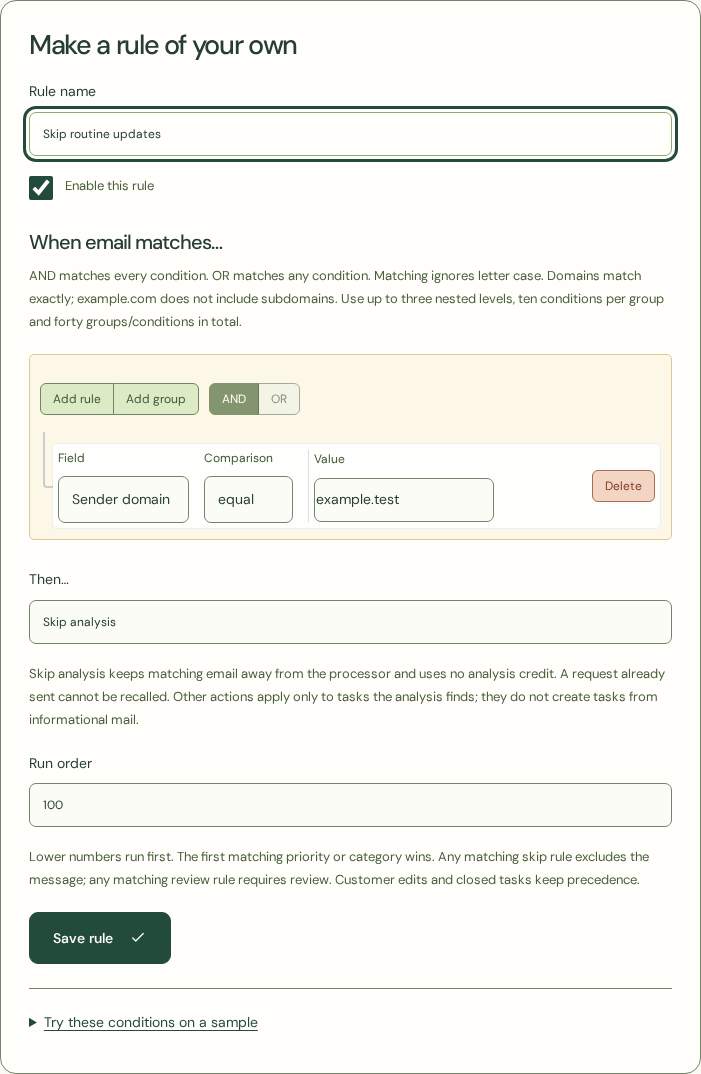
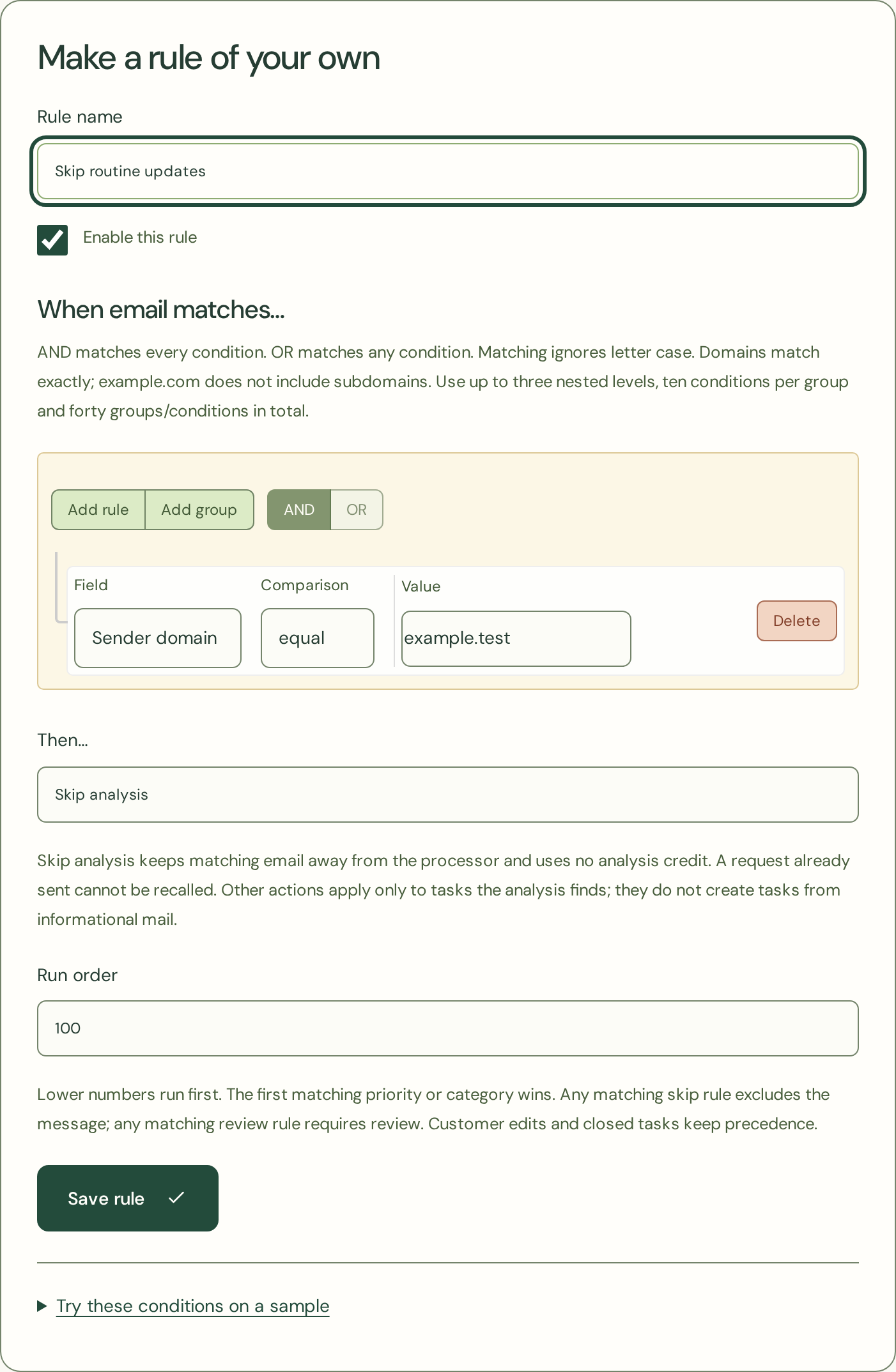
Choose Email rules in the sync bar, or beneath your connected mailbox in Account. Give the rule a name, choose its conditions and select an action. Rules are private to that mailbox. They do not enable syncing or change its monthly allowance.
Choose conditions
Match a sender address, exact sender domain, subject or incoming/outgoing direction. Matching ignores letter case; domains do not include subdomains. AND matches every condition and OR matches any. Nested groups let you combine them. Up to thirty rules can be saved per mailbox.
Automatic service-email exclusions
Recognized zenvodo briefing, briefing-confirmation and password-reset emails are excluded before analysis. New briefings carry a signed service marker; older messages are matched only by a configured sender and exact known subject pattern. These exclusions do not use analysis credits and cannot be overridden by a personal rule. Unmarked support conversations and ordinary messages mentioning zenvodo remain eligible.
Choose what happens
Skip analysis prevents a matching message from being sent to the analysis provider and uses no analysis credit. The mail adapter may already have fetched the message to apply the rule. Other actions set extracted task priority/category or require review; they do not create tasks from informational messages or modify your mail. An analysis request already sent cannot be recalled.
Keep the order clear
Lower run-order numbers run first. The first matching priority/category assignment wins; any matching skip rule excludes the message, and any matching review rule requires review. Customer edits, snoozes and closed tasks keep precedence. Try conditions on fictional sample details before saving.
Change your mind
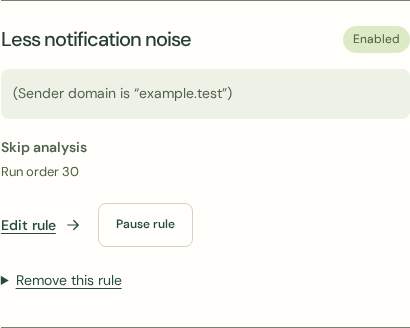
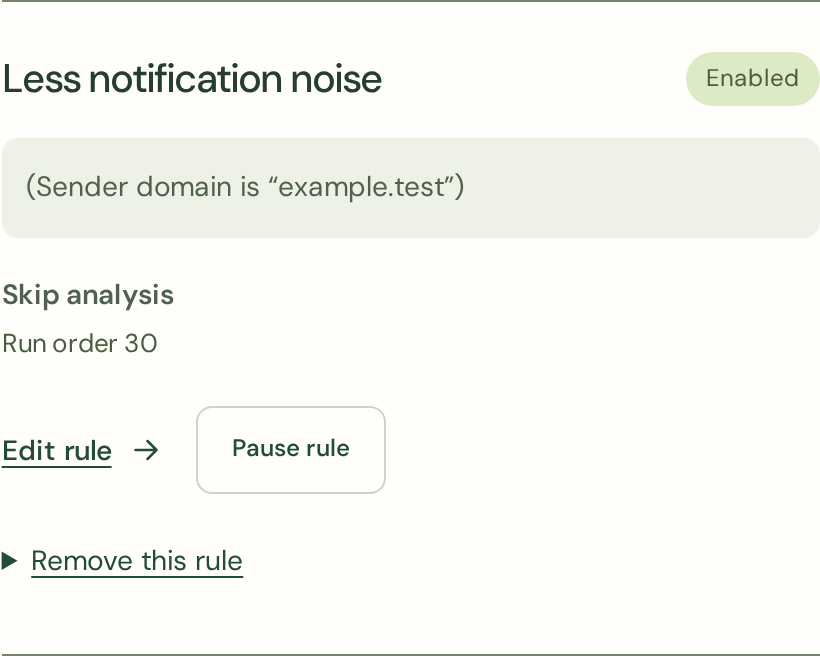
Edit, pause or enable rules at any time; removing a rule requires confirmation. Changes affect future processing, including remaining messages in an unfinished initial import. They do not retroactively rewrite existing tasks or replay messages that were already processed or excluded. If JavaScript is disabled or unavailable in your browser, you can still create single-condition rules and update other settings on existing rules. Enable JavaScript in your browser to edit nested AND/OR conditions. Saved rules continue to run when matching email is processed, regardless of your browser settings.