 zenvodo
A few thoughtful follow-ups
See why waiting items, promises and quiet work may need another look.
Find your follow-ups
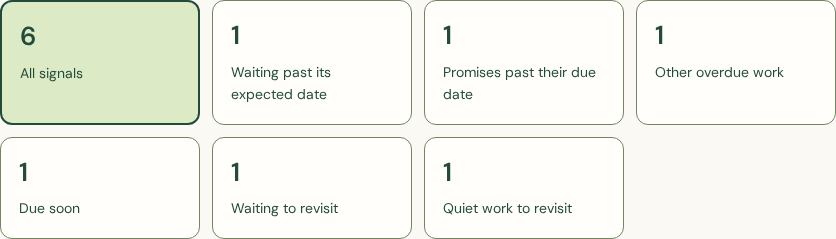
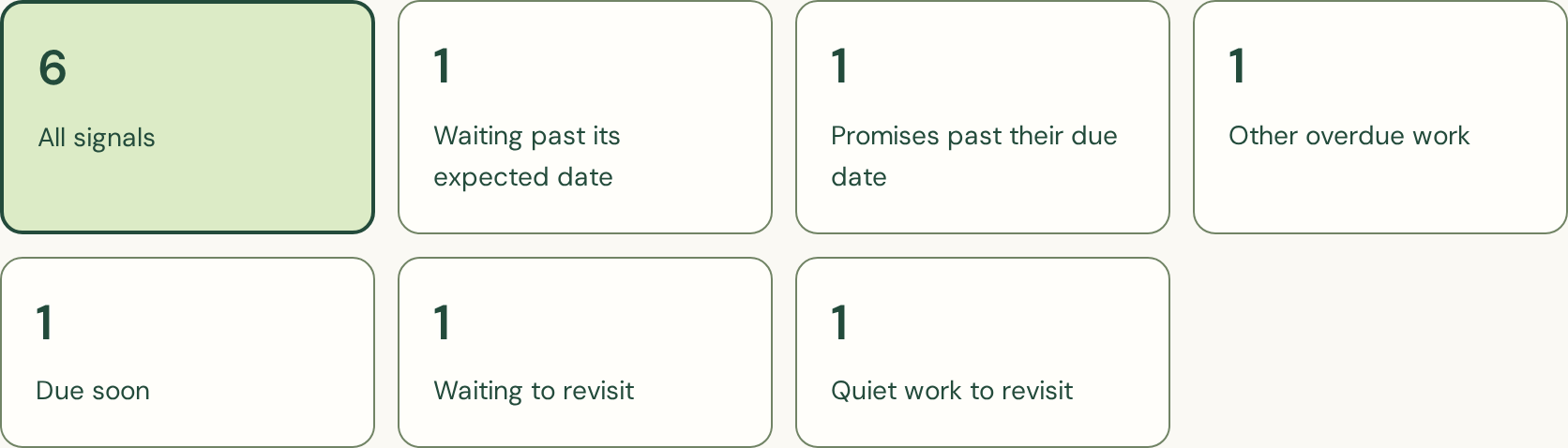
Open Follow-up insights from Account, the clock in a live workspace, or your daily briefing. Signals include overdue waiting items, overdue promises, other overdue work, approaching deadlines, waiting items without an expected date and quiet undated tasks. Each task appears once.
Choose your window
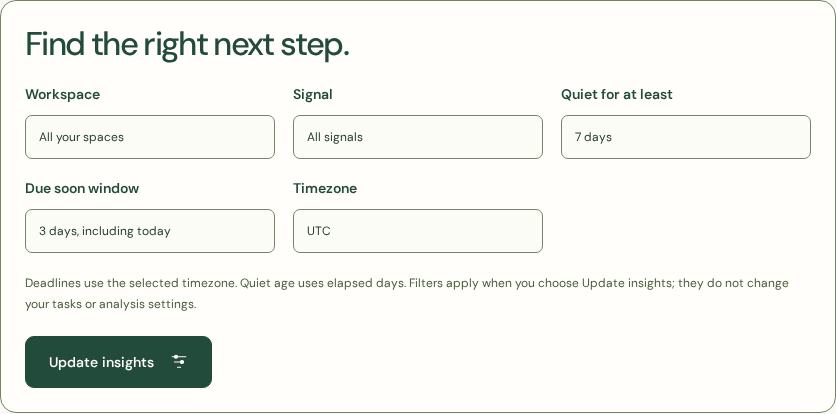
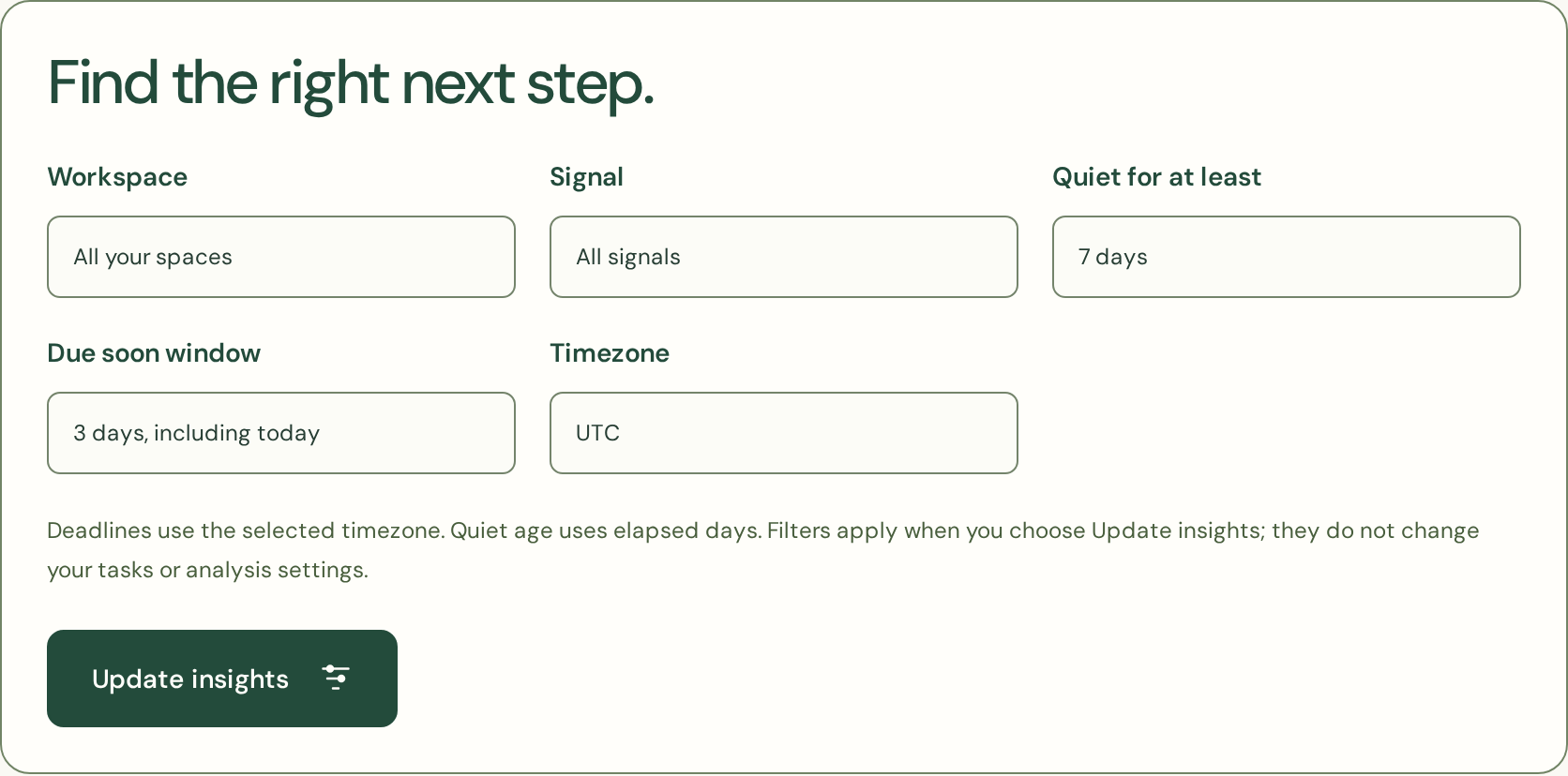
Filter by workspace or signal, choose a timezone, and select a quiet age of 3, 7, 14 or 30 days. The deadline window covers today or the next 3 or 7 days including today. Choose Update insights to apply the filters. Summary counts cover the selected workspace; result pages hold up to fifty tasks and provide Next and Previous links.
Understand the evidence
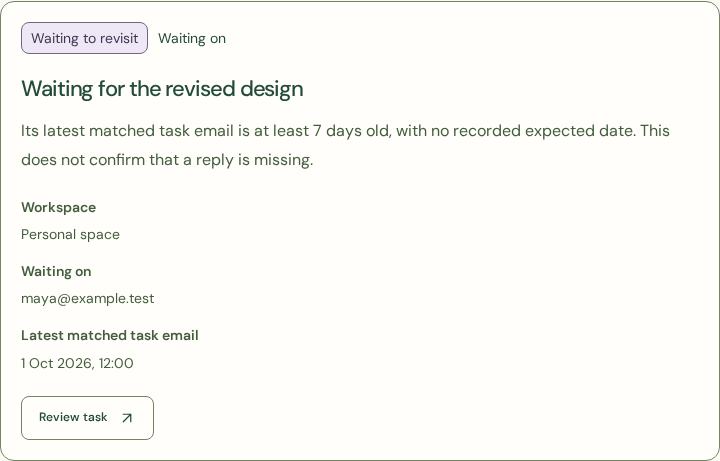
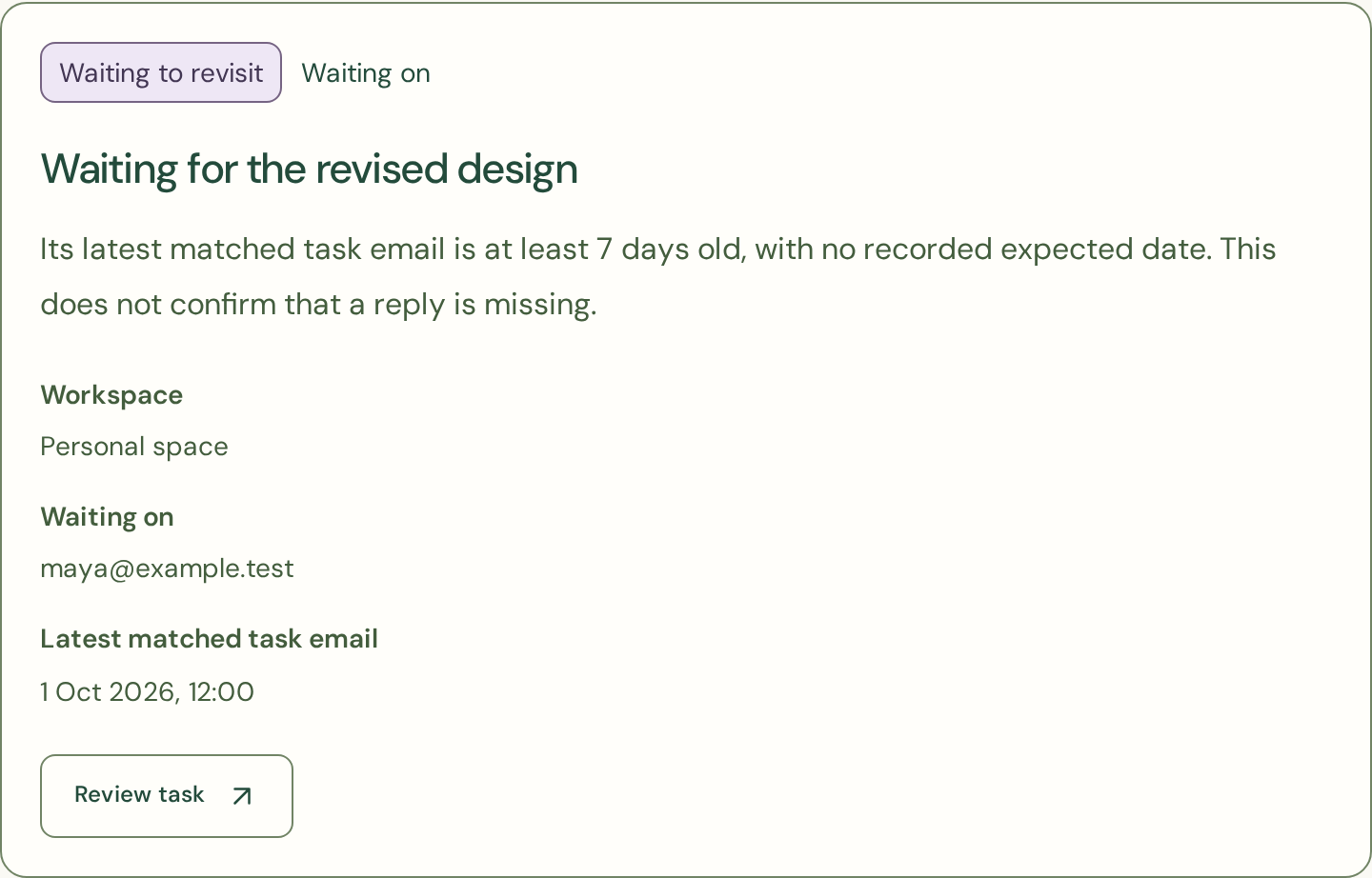
Overdue means the recorded deadline is before today in your selected timezone. Waiting to revisit uses the newest matched task-email timestamp, even when edits preserve older source metadata. Quiet work uses the last recorded task update. These signals do not prove that a reply is missing or that work remains unfinished. Partial imports and new mail can change what is known. Review the source email before deciding whether to follow up.
Choose the next step
Review task opens the correct workspace and task, even beyond the dashboard’s loaded results. Complete, snooze, correct or dismiss it using the normal task controls. Currently snoozed, completed, dismissed, review-only and possibly completed work stays out of these signals. An expired snooze returns automatically on refresh.
Keep it private
This read-only page uses local task data. It does not fetch mail, call an analysis service, send reminders or use analysis credits. Filters do not change task data or quota settings. Follow-up insights use saved tasks without consuming the monthly analysis allowance. Personal includes 3,000 analyses/month; Pro includes 8,000 shared across two connections.