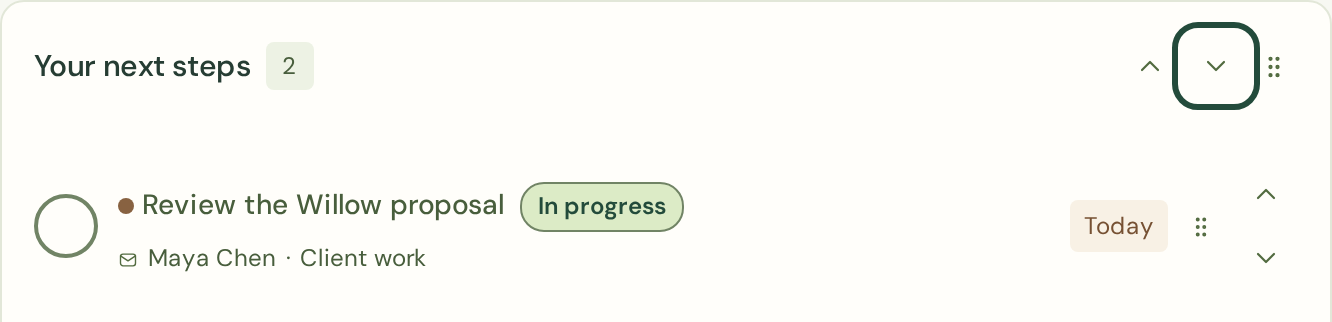
Drag the grip in a widget header to change its position. The Move up and Move down buttons provide the same control with a keyboard. Your arrangement saves automatically in a live workspace.
Move the widget from its headerExample
Use the arrows beside the widget title to move the whole card, or drag its six-dot grip. The smaller arrows beside each task move that task instead. This example highlights the widget’s Move down button. View full-size screenshot : Move the widget from its header
Pick a small focus
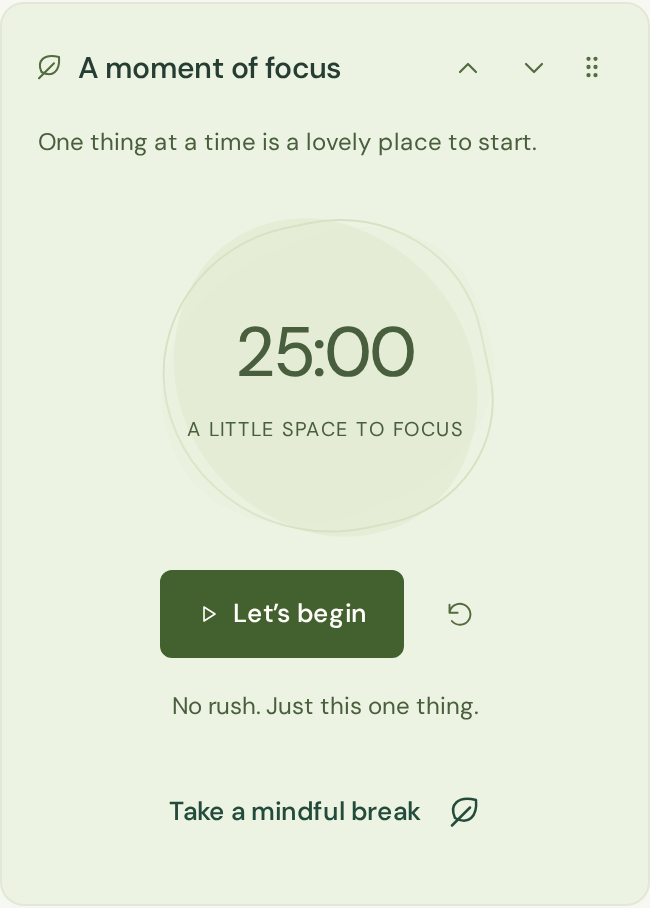
Use the focus timer for a twenty-five-minute session. Start, pause and reset it as needed. It is a gentle browser timer, without sound or notifications, and resets if you reload the page.
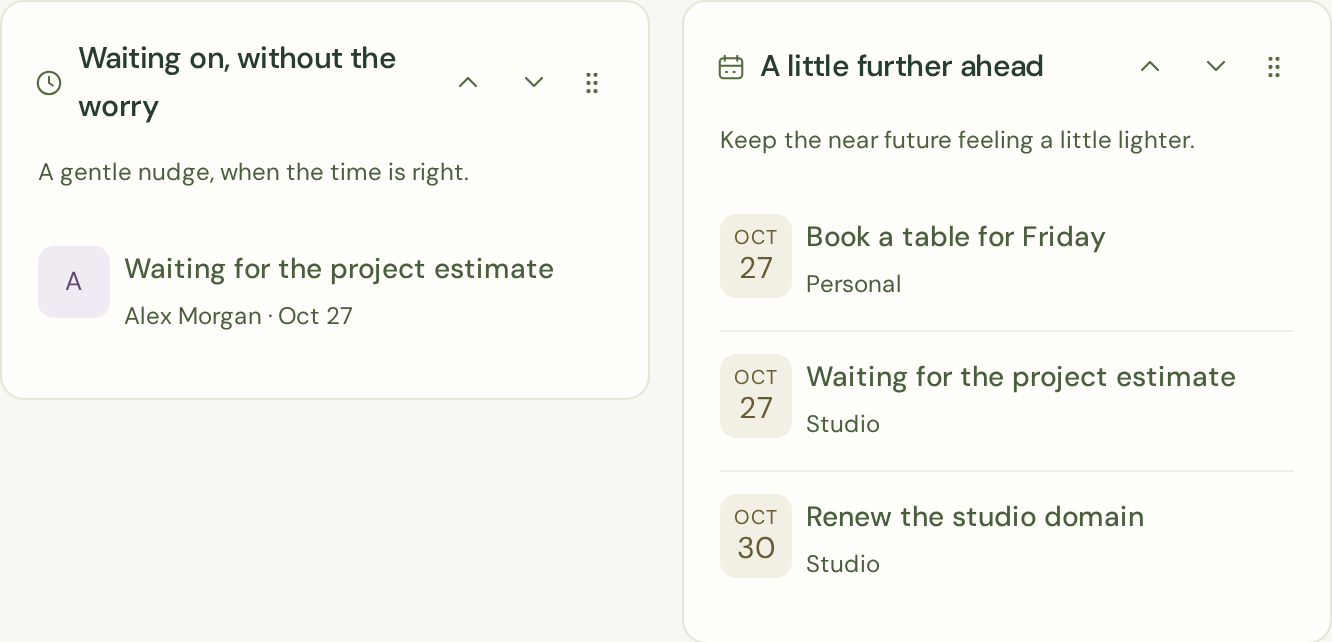
Waiting shows open follow-ups. Coming up shows dated work. The progress widget reflects the workspace summary. Supporting lists use the current loaded task results, so a filter or pagination can narrow them.
Keep follow-ups and future dates in viewExample
Fictional tasks show how the cards overlap: the estimate is both waiting on someone and due on a future date. Select a task to review it. These cards use loaded results; filters and pagination can narrow what appears. View full-size screenshot : Keep follow-ups and future dates in view
Choose a comfortable pace
Motion respects your device’s reduced-motion setting. Every core task action also works without dragging. The dashboard is designed for narrow screens as well as a full desktop.
 zenvodo