 zenvodo
Connect an email account, on your terms
Provider consent, read-only access, and a clear way out.
Authorize with your provider
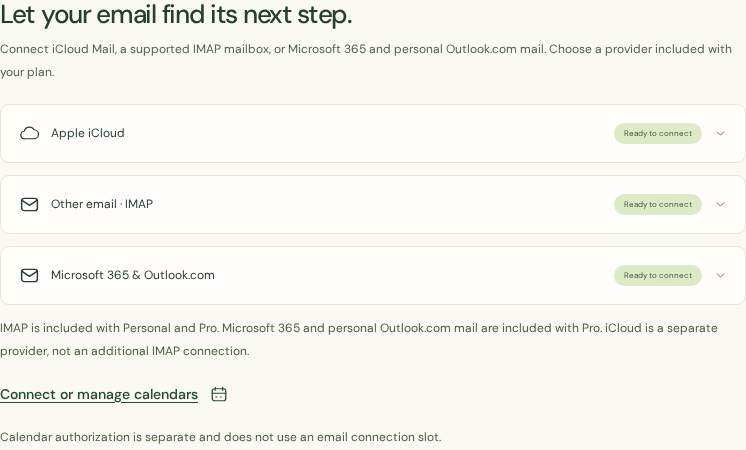
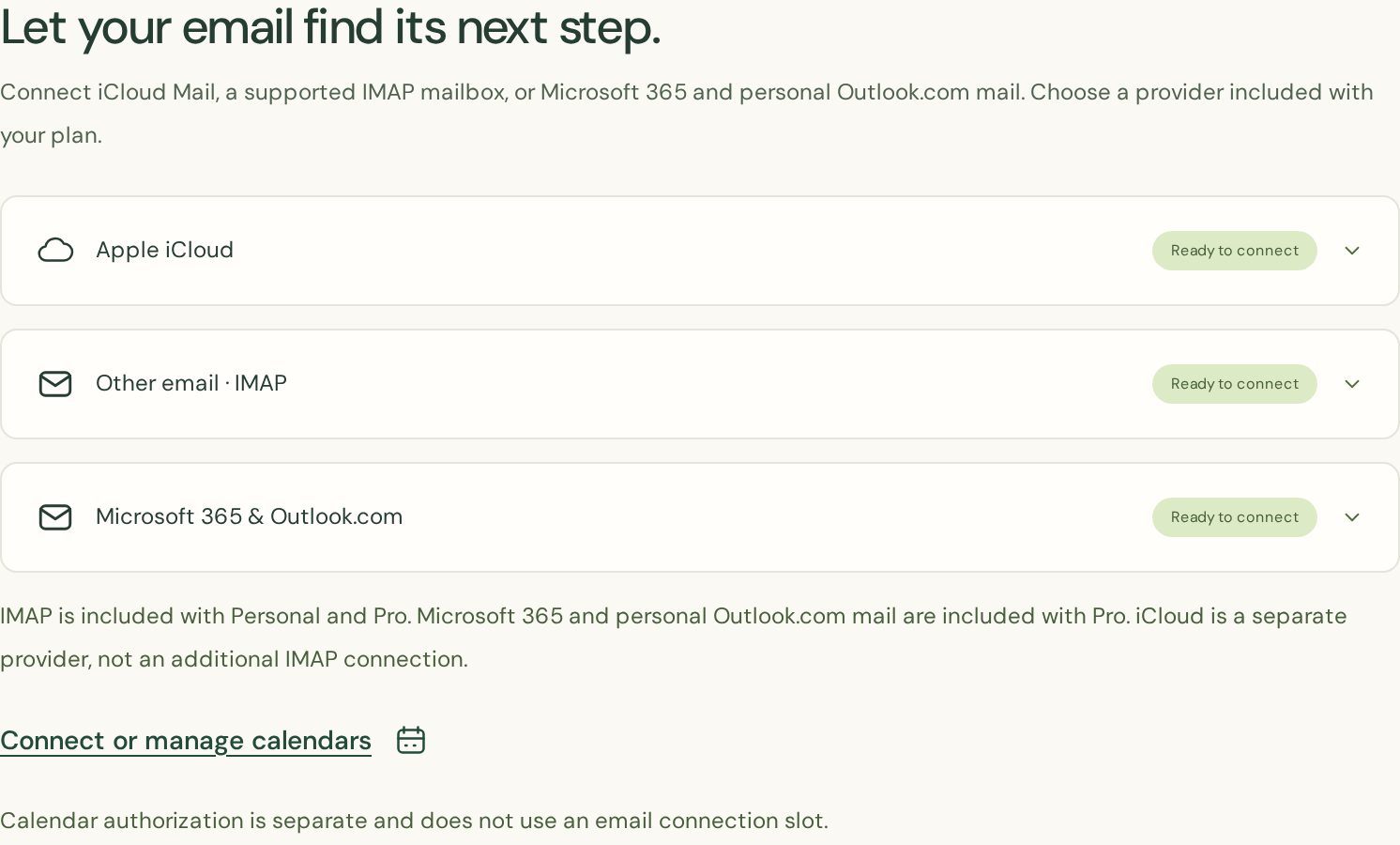
First verify your zenvodo sign-in email from Account. Choose Apple iCloud and follow the app-specific password instructions. New Gmail / Workspace connections are temporarily unavailable. Existing connections retain sync, pause, revocation and disconnection controls. For other supported mail hosts, choose Other email · IMAP. Use a public TLS IMAP server on port 993 and prefer an app-specific password. Choose Microsoft 365 & Outlook.com for work, school or personal Outlook mail. Microsoft sign-in grants read-only mail access; analysis remains a separate choice.
Before connecting
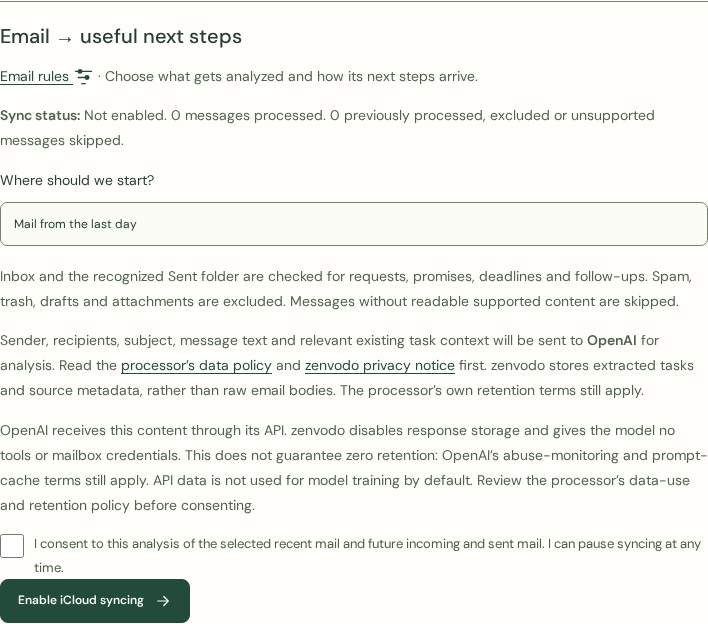
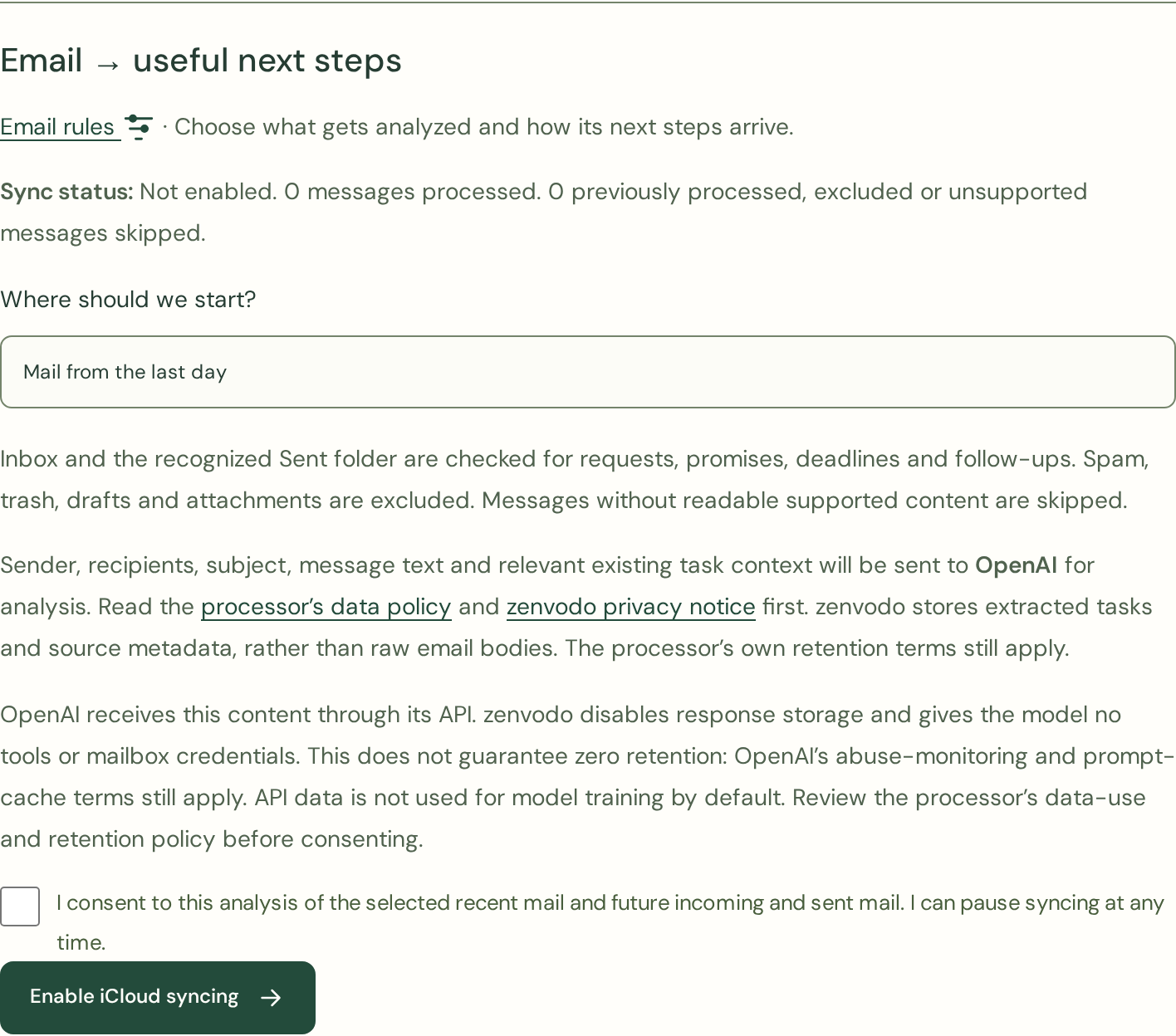
Read Getting Started first. Personal includes one iCloud or IMAP connection; Pro includes two connections total across iCloud, IMAP and Microsoft 365 / Outlook.com. Email connections require an active paid plan. iCloud uses a dedicated Apple app-specific password over TLS. Connecting alone does not start an import. In Account, open Email rules, choose a recent-mail window, read the analysis processor disclosure and explicitly enable syncing. zenvodo checks Inbox and Sent using read-only access. You can pause syncing at any time.
What you authorize
Gmail and Google Workspace request read-only mail access. zenvodo does not request permission to send, archive, delete or modify your mail. Connection credentials are encrypted at rest. iCloud app-specific passwords have broader permissions, so zenvodo itself restricts their use to read-only commands.
Disconnect whenever you need
Choose Disconnect in Account and confirm. This permanently removes that workspace’s local tasks, saved views and stored connection credentials. It does not delete your mail. For Gmail, use Revoke Google access before disconnecting if you want zenvodo to request remote revocation. For iCloud, revoke the app-specific password in your Apple Account.