 zenvodo
Connect Microsoft, with your permission
Microsoft 365 and personal Outlook.com mail and calendars, authorized separately.
Choose mail or Calendar
Microsoft 365 work and school accounts and personal Outlook.com, Hotmail and Live accounts use the same Microsoft connection option. Mail is included with Pro within its two connections total. Calendar is available independently on all plans, uses no email slot and does not require connecting Microsoft mail.
Connect read-only mail
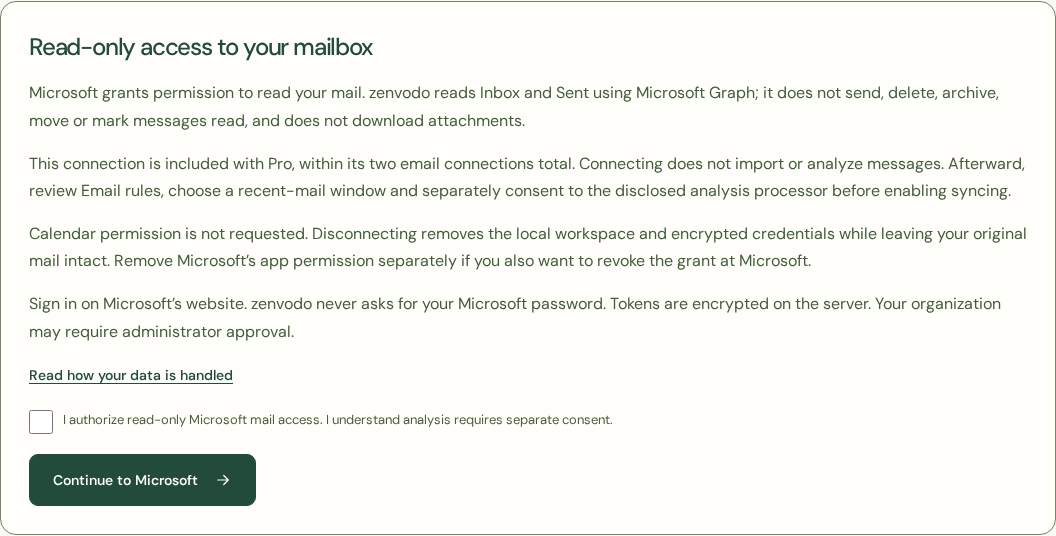
Verify your zenvodo sign-in email, then open Account → Microsoft 365 & Outlook.com → Continue to Microsoft. Read the disclosure, confirm and sign in on Microsoft’s website. Never enter your Microsoft password in zenvodo. Your organization may require administrator approval. Connecting does not start an import: review Email rules, select a 1, 7 or 30 day window and separately consent to the disclosed processor before enabling syncing.
Understand the mailbox boundary
zenvodo checks Inbox and Sent only. It does not send, move, delete or mark messages read, or download attachments. Initial synchronization may inspect older message IDs and dates to establish a complete checkpoint, but bodies outside your selected lookback are not requested. Shared and delegated mailboxes, archive mailboxes, on-premises Exchange and national-cloud environments are not supported.
Authorize Calendar separately
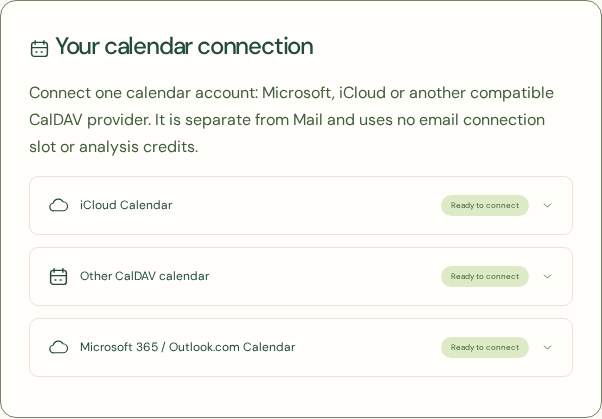
Open Account → Connect or manage calendars → Microsoft 365 / Outlook.com Calendar. Microsoft grants calendar read/write permission; zenvodo limits its use to a new dedicated calendar with a unique connection suffix and reviewed changes to its own events. Review each title, date and time from a saved task. Context is optional; no attendees or invitations are added. Calendar changes do not automatically change tasks or vice versa.
Reconnect or disconnect
Reconnect the same Microsoft mail identity to replace an expired grant while preserving tasks and sync choices. Calendar reconnection uses the same account and recovers its dedicated collection. If creation cannot be confirmed, check the pending setup before disconnecting and starting again; an earlier calendar may remain. Local disconnect removes credentials and local links or workspace data, leaving original mail and remote calendar events intact. Remove the app permission separately in Microsoft’s account or organization settings to revoke the grant there.